how to use chapter
install chapter
add the extension to your browser
chapter is available as a web browser extension. To install chapter, simply select the button below for the browser you want to use.
create your account
Start your free trial
Once installed, you can access chapter through the puzzle-piece extensions icon next to your web address bar and create your account from there. You can using existing accounts (e.g., Google) or create a unique login to sign up.
The product becomes active once you register for your subscription, which includes a free 30-day trial. Please refer to our pricing page for additional details.
experience chapter
the future is yours, only when you say so
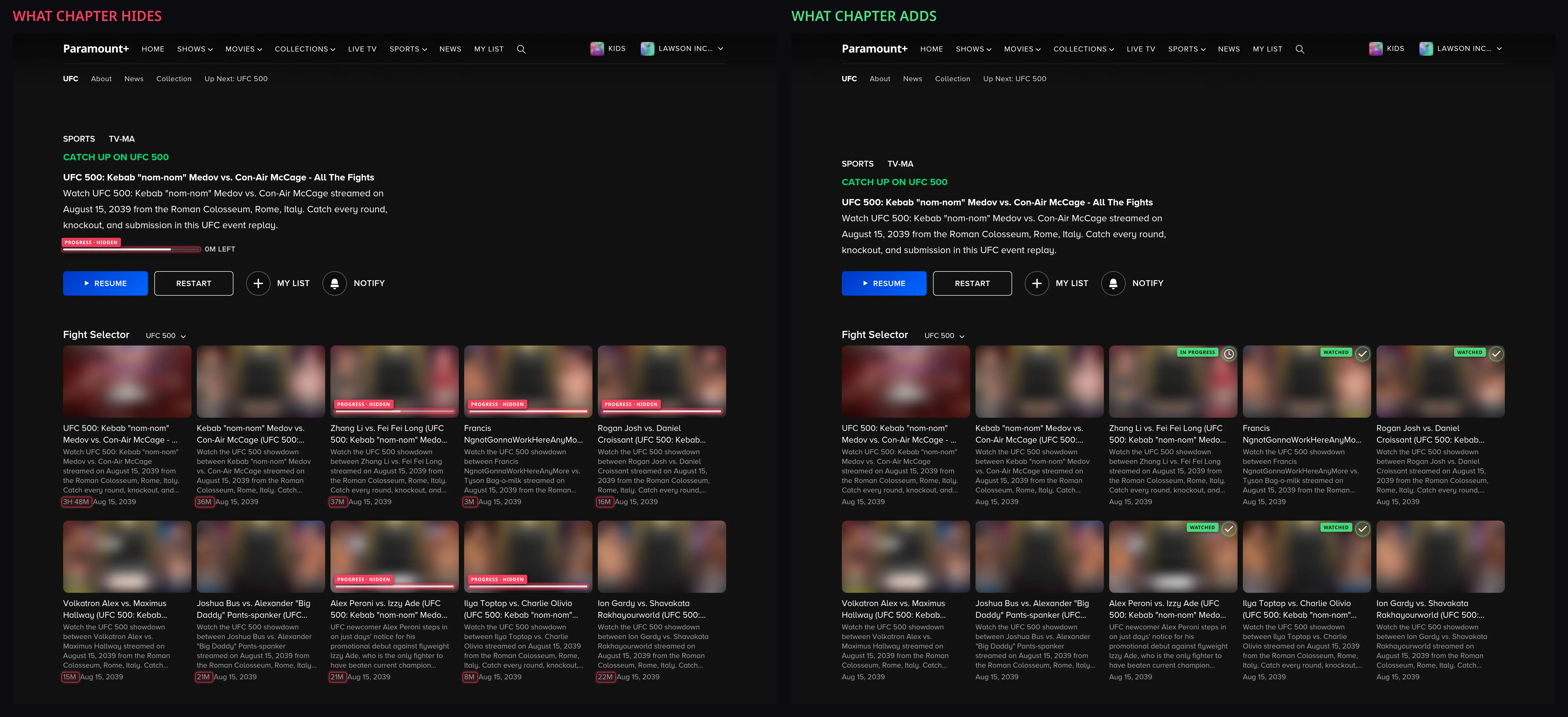
01browse without the spoilers
Explore new and legacy content without the spoilers.
02watch with the live bar + chapter navigation
Test out chapter's fully interactive live bar below, enhanced with chapter navigation for a 5 round fight.
Flip your device to landscape mode to reveal an interactive player.
Widen your browser window to reveal an interactive player.
View this page on a larger device to experience the interactive player.
On a Mac, hold Option where the picture says Ctrl.
03fine-tuned time controls, when you need them
| What it does | Key |
|---|---|
| Seek five seconds | ← → |
| Skip ten seconds | j l |
| Play or pause | k or space |
| Slower, faster | < > |
| Back or forward one frame | , . |
Quickly navigate back and forth through the event using the keyboard. Slow the feed down so you can truly soak up the artistry. For even more control, step through the motion frame by frame.
04get it to the big (or small) screen
We are working on building an app for chapter so you can use our product on your mobile and streaming devices. In the meantime, we suggest you use Sunshine and Moonlight to stream your computer's web browser to your favorite device. These are no cost tools that allow you to stream your computer to nearly any device, even outside of your own home network.
You install Sunshine on the computer you want to stream, and Moonlight on the device you want to watch on. We highly recommend you pair this with Tailscale so you can securely view your content on your mobile device from anywhere. Don't let the technical jargon on these pages intimidate you - setting up these products is quite simple. It may take you half an hour, but the power you get from this extends far beyond using chapter. Have a look at this comprehensive guide to get started.